

Overview
This guide explains how to implement OAuth2 authentication for mobile users (iOS and Android), allowing them to link their Discord accounts with your game on mobile devices. Mobile authentication uses deep linking to provide a seamless experience. When the Discord mobile app is installed, users are automatically redirected to Discord to authorize your game, then returned to your game via a custom URL scheme.As of Discord Social SDK 1.5, mobile account linking has been significantly simplified through native deep-link authentication support.
Key Differences from Desktop Authentication
Mobile platforms have unique requirements that differ from desktop:- Custom URL schemes (deep links) are required instead of HTTP redirects
- PKCE (Proof Key for Code Exchange) is mandatory for all mobile apps using deep links, regardless of whether you’re using a public or confidential client
- Platform-specific configuration is required (Info.plist for iOS, AndroidManifest.xml for Android)
Prerequisites
Before you begin, make sure you have:- Read the Core Concepts guide to understand:
- OAuth2 authentication flow
- Discord application setup
- SDK initialization
- Set up your development environment with:
- Discord application created in the Developer Portal
- Discord Social SDK version 1.5 or higher downloaded and configured
- Basic account linking flow working on desktop
Configure OAuth2 Redirect URI
For OAuth2 to work correctly on mobile, you must first register the correct redirect URI for your app in the Discord Developer Portal.| Platform | Redirect URI |
|---|---|
| Mobile (iOS & Android) | discord-YOUR_APP_ID://authorize/callback (replace YOUR_APP_ID with your Discord application ID) |
Unity Setup
Please follow the Unity Getting Started guide for general setup instructions. There are additional mobile-specific configurations you’ll need to complete:iOS Configuration
1. Configure URL Scheme in Unity Project Settings
To enableClient::Authorize support, configure a callback URL scheme:
- Open Project Settings:
Edit -> Project Settings... - Navigate to the
Playersection - Select the
iOStab - Under
Other Settings, locateSupported URL Schemes - Add
discord-YOUR_APP_IDto the list (e.g., if your application ID is123456, adddiscord-123456)
2. Set Microphone Usage Description
In the same Player settings page:- Set
Microphone Usage Descriptionto a valid description - This string will be displayed by iOS when microphone permissions are requested
- Required for voice support
3. Configure Info.plist for Deep Linking
For native authentication to work, you must update yourInfo.plist to include the discord scheme:
4. Enable Background Voice Support (Optional)
To enable voice support while your game is backgrounded:- Edit your
Info.plistto enable the appropriate background modes - A build postprocessor is supplied in the Unity sample project that you may copy into your own project, located at
Assets/Scripts/Editor/VoicePostBuildProcessor.cs
For background voice, you should configure Audio, AirPlay, and Picture in Picture mode, not Voice over IP. See Configuring your app for Media Playback for details.
Android Configuration
1. Configure Custom URL Scheme
Client::Authorize requires an activity with a custom URL scheme to be added to your application manifest:
- An example build processor is provided in the Unity sample project at
Assets/Scripts/Editor/AndroidPostBuildProcessor.cs - Alternatively, manually add an intent filter to your
AndroidManifest.xml:
YOUR_APP_ID with your actual Discord application ID (e.g., discord-1234567890123456789).
2. Add androidx.browser Dependency
Authorization requiresandroidx.browser as a Gradle dependency:
- If you use Google External Dependency Manager in your project, a suitable dependencies XML file is provided as part of the Unity plugin
- Otherwise, you’ll need to add this dependency manually to your
build.gradle:
3. Android Permissions
The Android SDK uses the following permissions:If your application does not use voice features, you may remove all permissions except
INTERNET using the tools:node="remove" attribute in your AndroidManifest.xml.Unreal Engine Setup
Please follow the Unreal Engine Getting Started guide for general setup instructions. For mobile-specific configuration, you only need to configure your Discord Application ID in the project settings.Configure Discord Application ID
To enable mobile authentication in Unreal Engine:- Open Project Settings (
Edit -> Project Settings...) - Search for
discordin the search bar - Under the Discord Social SDK section, enter your Discord Application ID
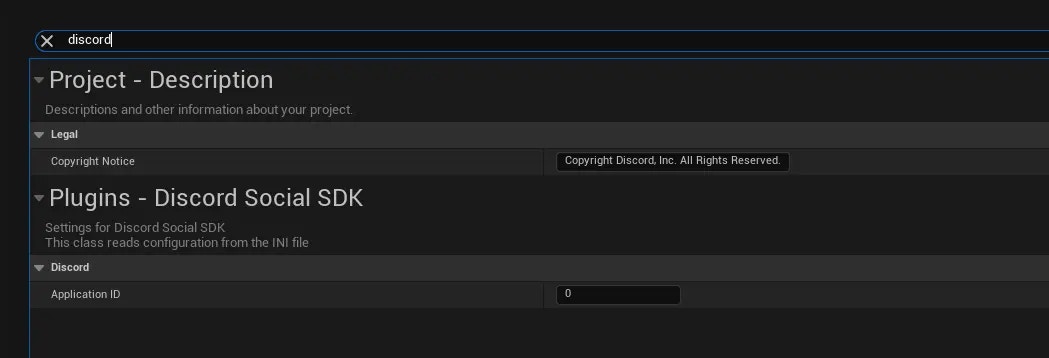
discord-YOUR_APP_ID://) for deep linking on both iOS and Android platforms automatically.
C++ Standalone Setup
The Discord Social SDK may be used as a C++ library in a standard iOS or Android project. Follow the steps below for your platform:iOS Setup
1. Create and Configure Xcode Project
- Create an Objective-C iOS project in Xcode
- Add
discord_partner_sdk.xcframeworkto your project
2. Configure Build Settings
- Add the xcframework to
Build Phases -> Link Binary with Librariesif needed - In the
Generaltab, underFrameworks, Libraries and Embedded Content:- Set
discord_partner_sdk.xcframeworkto Embed & Sign
- Set
3. Configure Background Audio (Optional)
To maintain voice connectivity while backgrounded:- Configure background audio modes in your
Info.plistusing theSigning & Capabilitiestab - Select Audio, AirPlay, and Picture in Picture, not Voice over IP
- See Configuring your app for Media Playback for detailed instructions
4. Register URL Scheme
To enableClient::Authorize support, register the appropriate URL scheme in your Info.plist:
YOUR_APP_ID with your application ID from the Discord Developer Portal (e.g., if your app ID is 123456, register discord-123456).
5. Include SDK Headers
In a C++ or Objective-C++ (.mm) source file:
6. Run Callbacks in Game Loop
In your main game loop, make sure to call:Android Setup
1. Create Android Project
Create an Android game project based on the Game Activity (C++) template.2. Add SDK as Dependency
Adddiscord_partner_sdk.aar as a dependency in your Gradle project:
- Add the AAR to a directory (e.g.,
app/libs) - In your
app/build.gradle, add to dependencies:
3. Enable Prefab
Ensure Prefab is enabled in your Gradle build. See Native Dependencies in AARs for details.4. Configure CMake
In yourCMakeLists.txt:
5. Include SDK Headers
In your C++ source:6. Initialize SDK in Activity
In theonCreate method for your main activity (Java/Kotlin):
7. Run Callbacks in Game Loop
In your main C++ loop:8. Configure Authorization Support
To supportClient::Authorize:
- Add
androidx.browserdependency (version 1.8 or later) to yourbuild.gradle:
- Add the appropriate
AndroidManifest.xmlactivity registration:
YOUR_APP_ID with your actual Discord application ID (e.g., discord-1234567890123456789).
Understanding PKCE for Mobile
What is PKCE?
PKCE (Proof Key for Code Exchange, pronounced “pixie”) is a security extension to OAuth2 that prevents authorization code interception attacks. It adds an extra layer of security by requiring both the client and server to prove they’re part of the same authentication flow.Why is PKCE Required on Mobile?
This is because custom URL schemes don’t have the same security guarantees as HTTPS redirects, making them vulnerable to interception attacks without PKCE.How PKCE Works
- Client generates a code verifier: A cryptographically random string
- Client creates a code challenge: A hashed version of the verifier
- Client sends code challenge with the authorization request
- Server stores the code challenge with the authorization code
- Client sends code verifier when exchanging the authorization code for a token
- Server verifies that the verifier matches the stored challenge
Client::CreateAuthorizationCodeVerifier.
Authentication Flow for Public Clients
If your app does not have a backend server and you’ve enabledPublic Client in the Discord Developer Portal, you can use the SDK to handle the entire authentication flow, including PKCE.
Step 1: Create Code Verifier and Challenge
UseClient::CreateAuthorizationCodeVerifier to generate the PKCE values:
Step 2: Request Authorization
UseClient::Authorize with the code challenge:
Step 3: User Approval
After callingClient::Authorize, the SDK will:
- Deep-link into the Discord mobile app if installed
- Or open a browser if Discord is not installed
- Present the authorization screen to the user
Step 4: Exchange Authorization Code for Token
Once the user approves and your app receives the authorization code, exchange it for an access token usingClient::GetToken with the code verifier:
Authentication Flow for Confidential Clients
If your application has a backend server and uses a confidential client (with client secret), you must still implement PKCE on mobile, but the token exchange happens on your server.Client-Side Implementation
Step 1: Create Code Verifier and Challenge
Generate the PKCE values on the client:Step 2: Request Authorization
Pass the code challenge to the authorization request:Server-Side Implementation
Your server must include thecode_verifier parameter when exchanging the authorization code for an access token:
Example Response
Client-Side: Update Token
Once your server returns the access token, update it in the SDK:Working with Tokens
You’ll want to store the access and refresh tokens for the player to use in future sessions. Sinceaccess_tokens generally expire after 7 days. You’ll need to use the refresh_token to refresh the
player’s access token, which is covered under Refreshing Access Tokens.
Troubleshooting
Common Issues
iOS: Authorization Opens Browser Instead of Discord App
Problem: The authorization flow opens a browser instead of deep-linking to the Discord mobile app. Solutions:- Verify that
LSApplicationQueriesSchemesincludesdiscordin your Info.plist - Ensure the Discord mobile app is installed on the device
- Check that your redirect URI is correctly configured as
discord-YOUR_APP_ID://authorize/callback
Android: Deep Link Not Working
Problem: After authorization, the app doesn’t receive the callback. Solutions:- Verify your AndroidManifest.xml has the correct intent filter
- Ensure the
android:schemematches your redirect URI:discord-YOUR_APP_ID - Check that your activity is set to launch mode
singleTaskorsingleTopif you need to handle multiple intents
Token Exchange Fails with “invalid_grant”
Problem: Server-side token exchange returns aninvalid_grant error.
Solutions:
- Most common: You forgot to include the
code_verifierparameter in the token exchange request - Verify you’re sending the verifier (from
codeVerifier.Verifier()), not the challenge - Ensure the code hasn’t expired (codes are short-lived)
- Check that the redirect URI matches exactly what was used in the authorization request
Next Steps
Now that you’ve successfully implemented account linking on mobile, you can integrate more social features into your game.Design: Signing In
Design guidelines for account linking and user authentication
Creating a Unified Friends List
Combine Discord and game friends into a single list for easy management.
Setting Rich Presence
Display game status and information to Discord friends.
#social-sdk-dev-help channel for support from the community.
If you encounter a bug while working with the Social SDK, please report it here: https://dis.gd/social-sdk-bug-report
Change Log
| Date | Changes |
|---|---|
| January 26, 2026 | Initial release |